ArcPanel runs Node.js apps for each user: every user installs the Node.js versions they need, and each app runs under pm2 behind one of their web domains. The same page covers app processes, for long-running PHP, Python, Ruby and Go programs.
Note
Node.js apps and app processes must be allowed by your package. If you do not see Node apps or App processes in the sidebar, ask your administrator. The
developerpackage allows both.
Install Node.js
- Open Node apps in the sidebar, then the Runtimes tab.
- Click Enable Node.js. ArcPanel installs nvm in your home directory, so that your SSH and web terminal sessions have
node,npmandnvm. - Click Install a version and pick a version that your package allows, such as the newest LTS. The download is checked against the Node.js release signature before it is unpacked.
- If you have several versions, Make default chooses the one your shell and new apps use.
Your package sets how many versions you may install, and which. Global packages installs command-line tools for the selected version: type a Package name, or use Quick add for pnpm, yarn or pm2.
Create an app
Put the code of your app in the domain's folder first, for example with Git over SSH or the file manager. Then:
- Open Node apps, the Apps tab, and click Create app.
- Domain: choose the Web domain that will serve the app.
- Start command: check the Working directory (
public_htmlby default; Read package.json reads the scripts from there), then start A file (such asserver.js) or A script of package.json (such asstart). - Runtime: the Node.js version, or Default, which follows the default version of your account.
- Port and name: keep Automatic to take a free port of your pool, and give the app a Process name if you want another name than the domain. Instances above 1 runs the app in cluster mode on several CPU cores.
- Template: how the domain passes requests to the app: Node.js app, Node.js app with WebSockets, or a template for Next.js, Nuxt, Ghost or Strapi.
Click Create app. ArcPanel starts the app at once. If it needs its packages or a build first, click Install dependencies (ArcPanel picks pnpm, yarn or npm from your lock file) and Run build, then Restart.
Your app must listen on the port in the PORT environment variable, on 127.0.0.1:
const port = process.env.PORT;
server.listen(port, "127.0.0.1");
The domain now sends its visitors to the app. Give it a certificate on the domain's SSL tab, as for any site.
Run and watch the app
The app page has the tabs Overview, Logs, Environment, Settings and Danger zone.
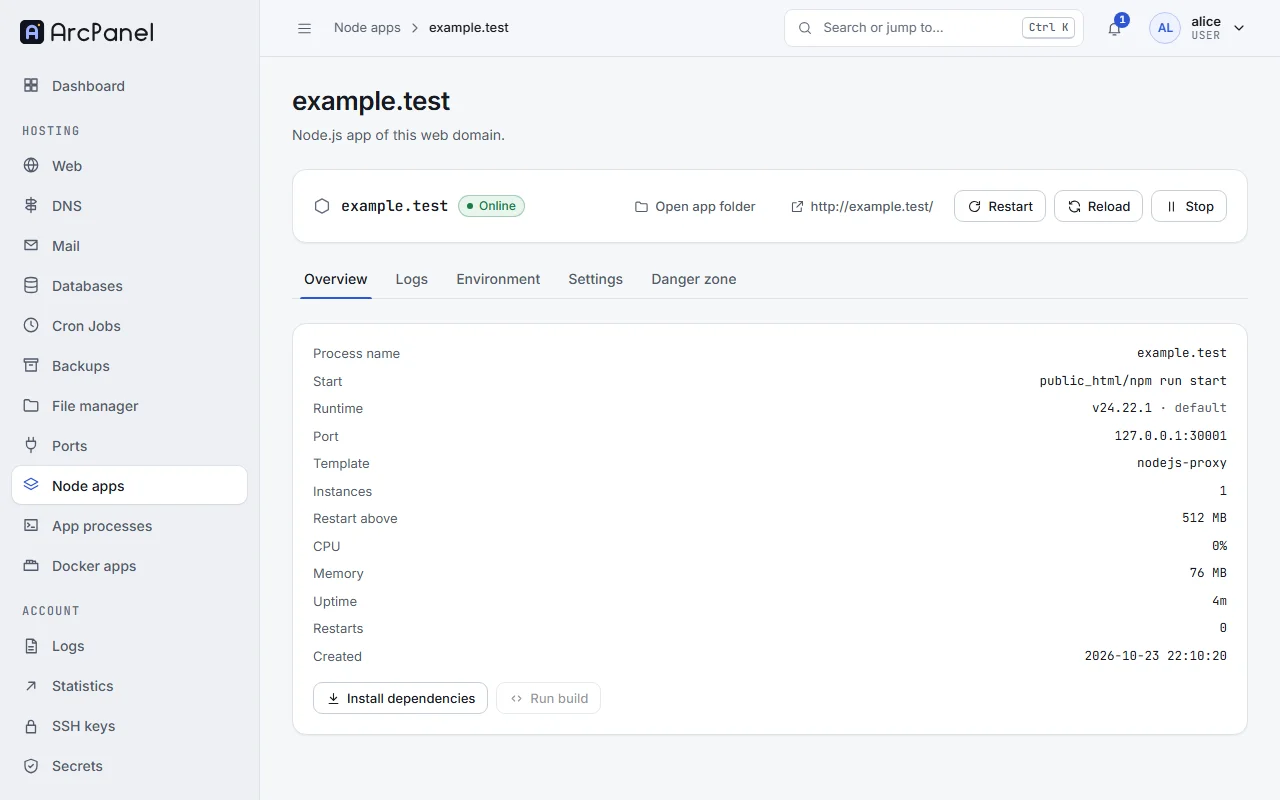
- Start, Stop, Restart and Reload. Reload restarts the instances one by one, without downtime, when the app runs more than one instance. Open app folder opens the working directory in the file manager.
- Logs shows Output, Errors, Install and Build, with Pause, Clear the view and Download.
- Environment holds the variables of the app's
.envfile. Add a variable adds a row; a value can refer to a secret of your account as{{secret:NAME}}, and Insert a secret adds one for you. Save and restart applies them.PORT,HOSTandNODE_ENVare set by ArcPanel. - Settings changes the Start command, the Node.js version, the number of Instances and Restart above (MB): pm2 restarts an instance that uses more memory than that (512 MB by default).
ArcPanel checks the apps every five minutes and starts those that should be running, for example after a reboot.
Delete an app
On Danger zone, Delete the app stops it, frees its port and gives the domain back its previous template. Keep .env and the logs leaves those files in place.
App processes
App processes run other long-running programs for a web domain, each as a service of its own:
| Preset | Runs |
|---|---|
octane-swoole, octane-roadrunner, octane-frankenphp |
Laravel Octane, as the domain's web server |
laravel-queue, laravel-horizon, laravel-scheduler |
Laravel workers |
gunicorn, uvicorn, celery |
Django, Flask or FastAPI, and Celery workers |
puma, sidekiq |
Rails and Sidekiq |
go-binary |
A Go program |
custom |
Your own command |
- Open the domain's App processes tab and click Add process, or use App processes in the sidebar.
- Choose the Kind: a Web process serves the domain (one per domain), a Worker runs beside it.
- Choose a Preset, check the Working directory (Detect finds it) and the Command, and set Memory (MB) and CPUs.
The process page has Start, Stop, Restart and Reload: reload runs the right action for the preset, such as octane:reload or queue:restart. Tasks runs one-off commands in the app's environment, such as composer install, php artisan migrate or pip install -r requirements.txt, with their output in the logs.
Your package sets how many processes you may run, with how much memory and how many CPUs.
From the command line
v-add-user-nvm alice
v-add-user-node-version alice lts
v-add-node-app alice app.example.com server.js
v-add-app-process alice example.com worker laravel-queue
Next steps
- Docker apps for ready-made applications.
- Web domains and templates on templates and app ports.