ArcPanel runs MariaDB (or MySQL 8) by default and PostgreSQL when the administrator installed it. Each database belongs to a user and has its own database user.
Add a database
- Open Databases in the sidebar and click Add Database.
- Enter the Database name and a Username. ArcPanel puts your user name and an underscore in front of both: the database
shopof the useralicebecomesalice_shop. Names use letters, digits and underscores; the database user can be at most 32 characters with the prefix. - Set a Password of at least 8 characters with upper and lower case letters and a digit, or click the button to generate one.
- Under Advanced Options, choose the Type (
mysqlorpgsql), the Host (localhostunless the administrator added other database servers) and the Charset (utf8mb4by default). - Fill in Send login credentials to email address if someone else needs the details, and save.
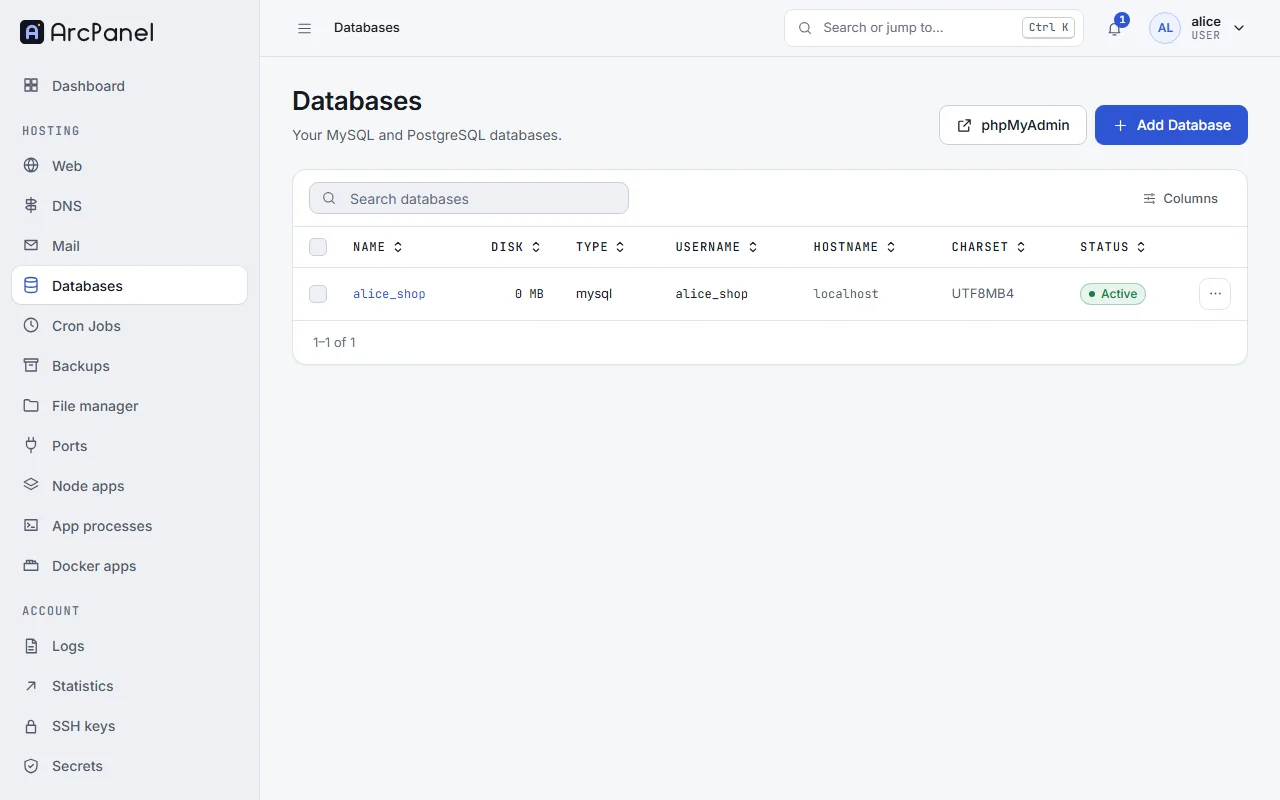
Your application connects with:
| Setting | Value |
|---|---|
| Host | localhost |
| Port | 3306 (MySQL), 5432 (PostgreSQL) |
| Database | alice_shop |
| User | alice_shop or the name you chose |
| Password | the password you set |
From the command line, as root:
v-add-database alice shop shop 'a-strong-password' mysql
The number of databases a user can create is set by the Databases field of the package.
Change the user or the password
Open the database from the list. On its edit page you can change the Username and set a new Password; leave the password empty to keep the current one. The name, type, host and charset cannot be changed after the database exists.
Update the settings of your application at the same time, or it can no longer connect.
Open phpMyAdmin
phpMyAdmin in the toolbar opens phpMyAdmin on port 8087 of the panel host, for example https://panel.example.com:8087/phpmyadmin/. For PostgreSQL the button is phpPgAdmin.
When the administrator turned on single sign-on, the phpMyAdmin action in a MySQL database's menu signs you straight in to that database, without typing the password.
Note
The button is greyed out when you opened the panel by its IP address. Open it by its host name instead.
Download and import
Download in a database's menu exports it as a compressed SQL dump (.gz). Keep it as an extra copy, or use it to move the database elsewhere.
To import a dump, use phpMyAdmin's Import tab for small files. Large dumps are faster from the command line, as root:
v-import-database alice alice_shop /home/alice/shop.sql
Suspend and delete
Suspend stops the database user from connecting, without deleting anything; Unsuspend reverses it. Delete removes the database and its user for good. Each action asks you to confirm, and the list has the same actions for several databases at once.
Remote access
The firewall does not open the database ports, and the databases are meant for applications on the same server. To reach a database from your computer, use an SSH tunnel instead of opening the port:
ssh -L 3306:127.0.0.1:3306 alice@panel.example.com
Then connect your database tool to 127.0.0.1:3306. The user needs SSH access, which the administrator sets with SSH Access on the user's edit page.
For administrators
Server › Configure › Databases sets the phpMyAdmin Alias, the phpPgAdmin Alias and the Database Tools Port (leave it empty to turn the tools off), and turns phpMyAdmin Single Sign On and Restrict phpMyAdmin access on or off. The Database hosts card lists the database servers and how many databases each holds.
To add another database server, use the command line:
v-add-database-host mysql db2.example.com root 'its-password' 500