Docker apps are ready-made applications that run in containers, each behind one of your web domains: Gitea, Miniflux, n8n, Redis, Uptime Kuma and Vaultwarden. ArcPanel installs them from its store, keeps their data in your home directory, and updates them with a way back.
Install the Docker engine
Docker is not installed with ArcPanel. As administrator:
- Open Docker engine in the sidebar.
- Click Install Docker engine. ArcPanel installs Docker CE and the Compose plugin from Docker's own repository.
Once the engine runs, the sidebar shows Docker apps, and the engine page becomes its Engine tab.
No user gets access to the Docker socket: users install and manage apps only through the panel. ArcPanel checks the apps every five minutes, and makes a nightly copy of their databases before the backups run. The Engine tab lists what the checks found under Findings.
Users also need a package that allows Docker apps, with a number of apps and, if you like, CPU and memory limits. The developer package allows three.
Install an app
- Open Docker apps and the store. Search apps and Category narrow the list; apps you have show Installed.
- Open an app. The page shows what it needs (Memory, Disk), its Limits, License, Ports and how it is backed up.
- Enter an App name (2 to 32 lower-case letters, digits and dashes, starting with a letter; the app's own name by default). For an app with a web interface, choose the Web domain that will serve it, and create the domain first if you do not have one for it.
- Fill in the app's settings. Passwords and keys have Generate.
- Click Install. The app page opens and shows the install output; pulling the images takes a minute or more.
For an app with a web interface, the domain switches to the Docker container template and passes its visitors to the app. Give it a certificate on the domain's SSL tab, as for any site; apps learn their address from ArcPanel and use https:// when the domain has SSL.
Redis has no web interface and no domain: it listens on a private port of 127.0.0.1, shown on its Overview tab, for your own Node.js apps and sites to use.
Run and watch an app
The app page has the tabs Overview, Logs, Settings, Updates, Backups and Danger zone.
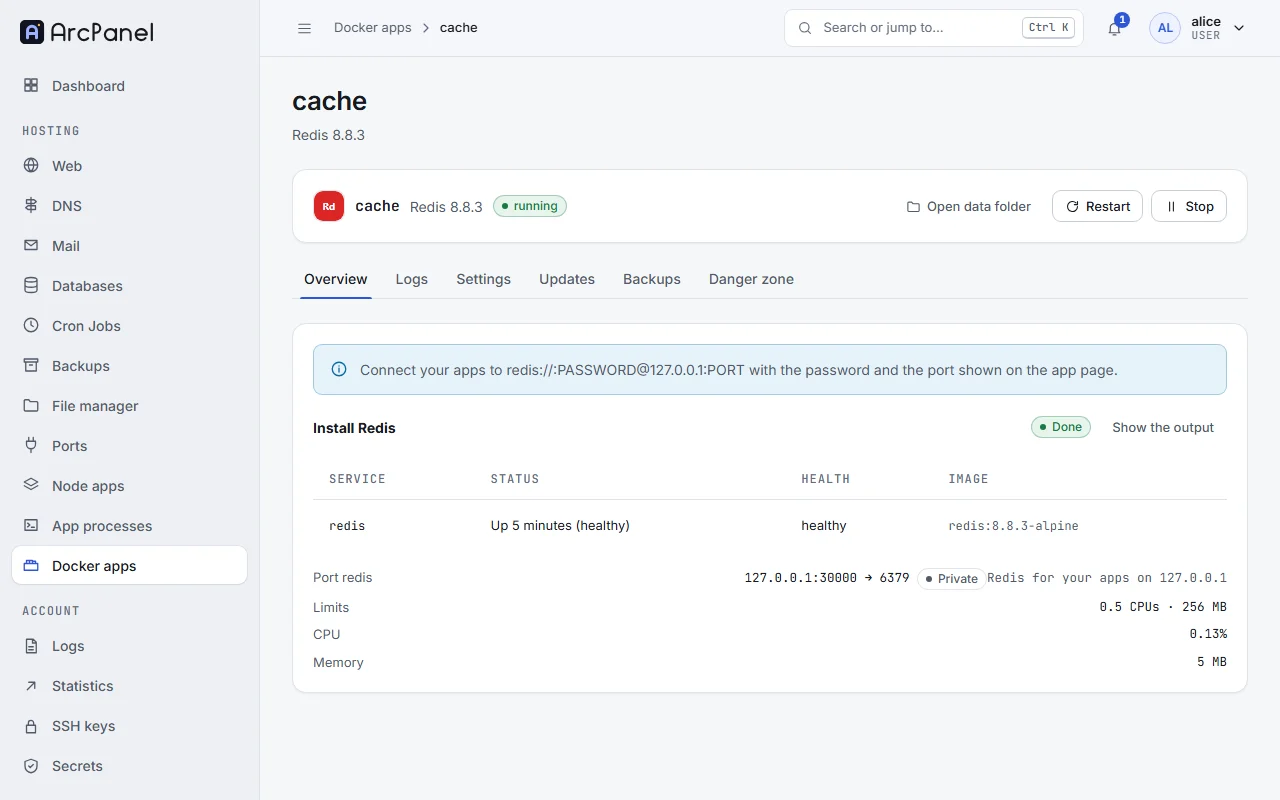
- Start, Stop and Restart; Open data folder opens the app's data in the file manager.
- Overview lists the app's Services with their status and health, its ports and its limits.
- Logs shows the output of all its containers, or of one Service, with Pause, Clear the view and Download.
- Settings changes the app's Variables (Use a secret inserts a value from your secret store; secret fields left empty keep their value), its Limits (CPUs, Memory (MB)) and, for apps with a web interface, its Web domain.
Update and roll back
When a new version of an app is in the store, Updates offers Update to that version. ArcPanel takes a snapshot of the app's data first; if the update fails, it rolls back by itself. Roll back to returns to the previous version later, with its data snapshot.
Data and backups
Each app has a folder ~/apps/<name>/ with its settings and snapshots, and its data in ~/apps/<name>/data. Databases inside the app are dumped every night to ~/apps/<name>/data/.dumps/, so the nightly backup holds a consistent copy. Backups shows the Last dump and has Snapshot now.
App data is part of your backups and of restic snapshots.
Remove an app
On Danger zone, Delete the app stops and removes its containers and frees its ports. Keep the data folder moves the data to ~/apps/.removed/ instead of deleting it, so you can bring it back.
Ports
Apps get their ports from your port pool, like Node.js apps. Ports are private to the server: visitors reach the app through its web domain. The Ports page under Hosting lists the ports you use.
From the command line
v-add-sys-docker
v-list-docker-catalog
v-add-docker-app alice uptime-kuma status status.example.com
Next steps
- Web domains and templates for the domain in front of the app.
- Node.js apps to run your own code instead.