ArcPanel runs a full mail server: Exim for sending and receiving, Dovecot for IMAP and POP3, Roundcube for webmail, with optional spam and virus filters. Set up mail and DNS covers the first mail domain; this guide covers the rest.
Mail domains
Open Mail in the sidebar and edit a domain. The General tab has:
| Field | Meaning |
|---|---|
| Webmail Client | Roundcube, or Disabled to turn webmail off for the domain |
| Catch-All Email | Where mail to unknown addresses of the domain goes. Leave empty to reject it |
| Rate Limit | How many messages each mailbox may send per hour (set by the administrator) |
| Spam Filter | Scan incoming mail with SpamAssassin and mark spam |
| Reject Spam | Refuse mail that is clearly spam instead of delivering it |
| Anti-Virus | Scan incoming mail with ClamAV |
| DKIM Support | Sign outgoing mail with a DKIM key |
Spam and virus filters appear only when the administrator installed them. Avoid a catch-all on domains that receive much spam: it delivers all of it to one mailbox.
The DNS Records button lists the records the domain needs, with Copy buttons, and Open DNS zone when the zone is on this server.
Mailboxes
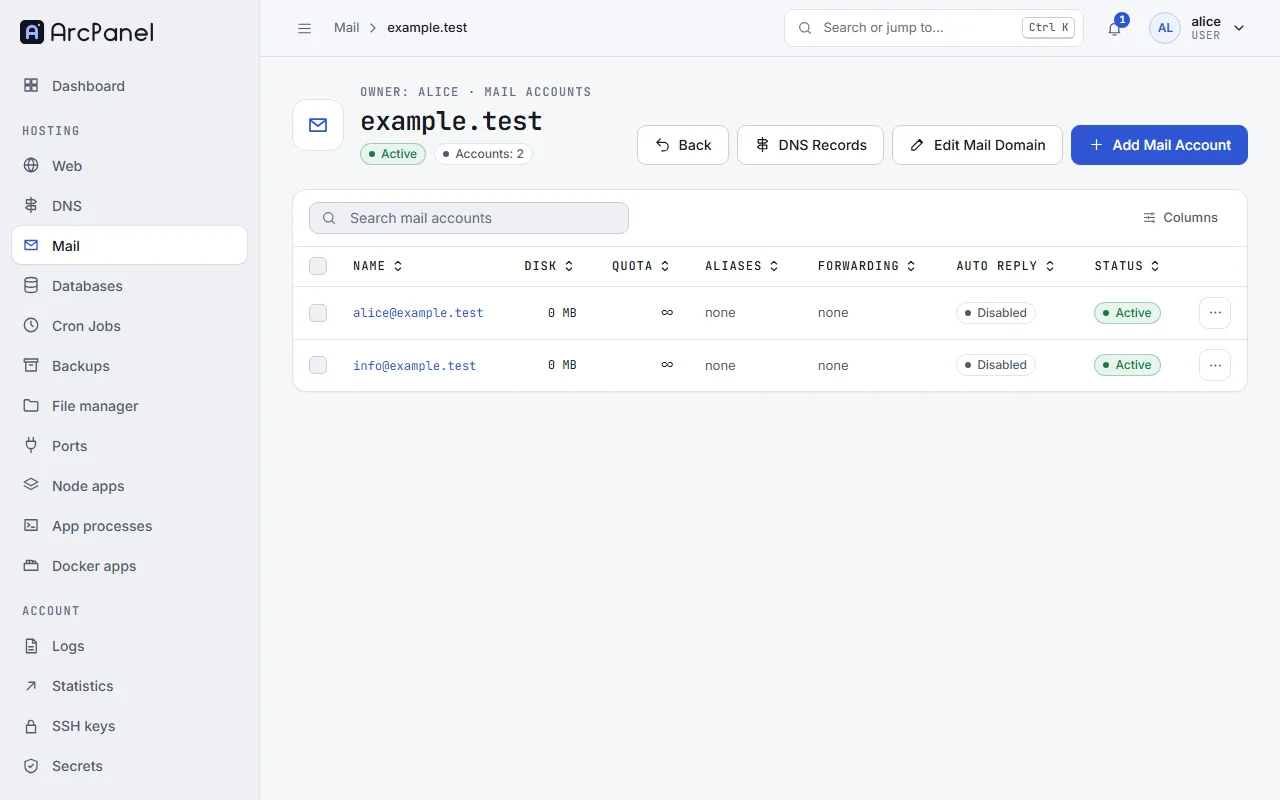
Open a domain's Mail Accounts and edit a mailbox. It has three tabs:
- General: a new Password (leave empty to keep it), the Quota in MB (or unlimited), and Email login credentials to: to send the settings to someone.
- Aliases and forwarding:
- Aliases are other addresses of the same mailbox, written without the domain:
salesmakessales@example.comarrive in this mailbox; - Forward to sends a copy of each message to one or more other addresses;
- Do not store forwarded mail forwards without keeping a copy here;
- Discard all mail throws incoming mail away, for addresses that should exist but never be read.
- Aliases are other addresses of the same mailbox, written without the domain:
- Auto Reply: turn on Auto Reply and write the Message that answers every incoming mail, for holidays or a changed address. Turn it off when you are back.
Open Webmail (signed in) opens Roundcube already signed in to the mailbox. Suspend stops the mailbox from sending and receiving without deleting its mail.
v-add-mail-account-forward alice example.com info alice@example.org
v-add-mail-account-autoreply alice example.com info "I am away until Monday."
v-change-mail-account-quota alice example.com info 2048
Passwords
Users change their own mailbox password in Roundcube, under Settings › Password, without access to the panel. The panel user changes any mailbox password on its General tab.
Sending limits
Each mailbox may send a number of messages per hour, 200 by default. This keeps a hacked password from turning the server into a spam source. The administrator sets the limit in the package (Mail rate limit), per domain (Rate Limit) or per mailbox.
Relaying through another provider
Some providers block outgoing mail on port 25, or you may want mail to go out through a service such as Amazon SES, Mailgun or Postmark for better delivery.
- For one domain: the mail domain's SMTP Relay tab: Host, Port (usually 587), Username and Password.
- For the whole server: Server › Configure › Mail Server, Global SMTP Relay. A domain's own relay takes precedence.
Webmail
Roundcube runs on the panel host on port 8086. Administrators change this under Server › Configure › Mail Server:
- Webmail Port: the port on the panel host (empty turns it off);
- Webmail Alias: the name under each mail domain,
webmailby default; - Open Webmail on: The webmail port of the panel host, or The webmail alias of each mail domain, so that users open
webmail.example.com.
Server-side mail filters (Sieve) are an installer option (--sieve yes). When they are installed, users manage their filters in Roundcube.
Limits
The package sets Mail Domains, Mail Accounts and the Mail rate limit.