ArcPanel manages an iptables firewall with Fail2Ban, both installed by default. The firewall drops every incoming connection that no rule accepts; Fail2Ban bans addresses that fail to log in too often.
Open Network › Firewall under Server. The page appears when the firewall is installed.
The default rules
| Rule | Ports |
|---|---|
| PING | ICMP |
| ARCPANEL | 8083 (the panel) |
| IMAP | 143, 993 |
| POP3 | 110, 995 |
| SMTP | 25, 465, 587 |
| DNS | 53, TCP and UDP |
| FTP | 21 and 12000–12100 |
| WEB | 80, 443 |
| SSH | 22 |
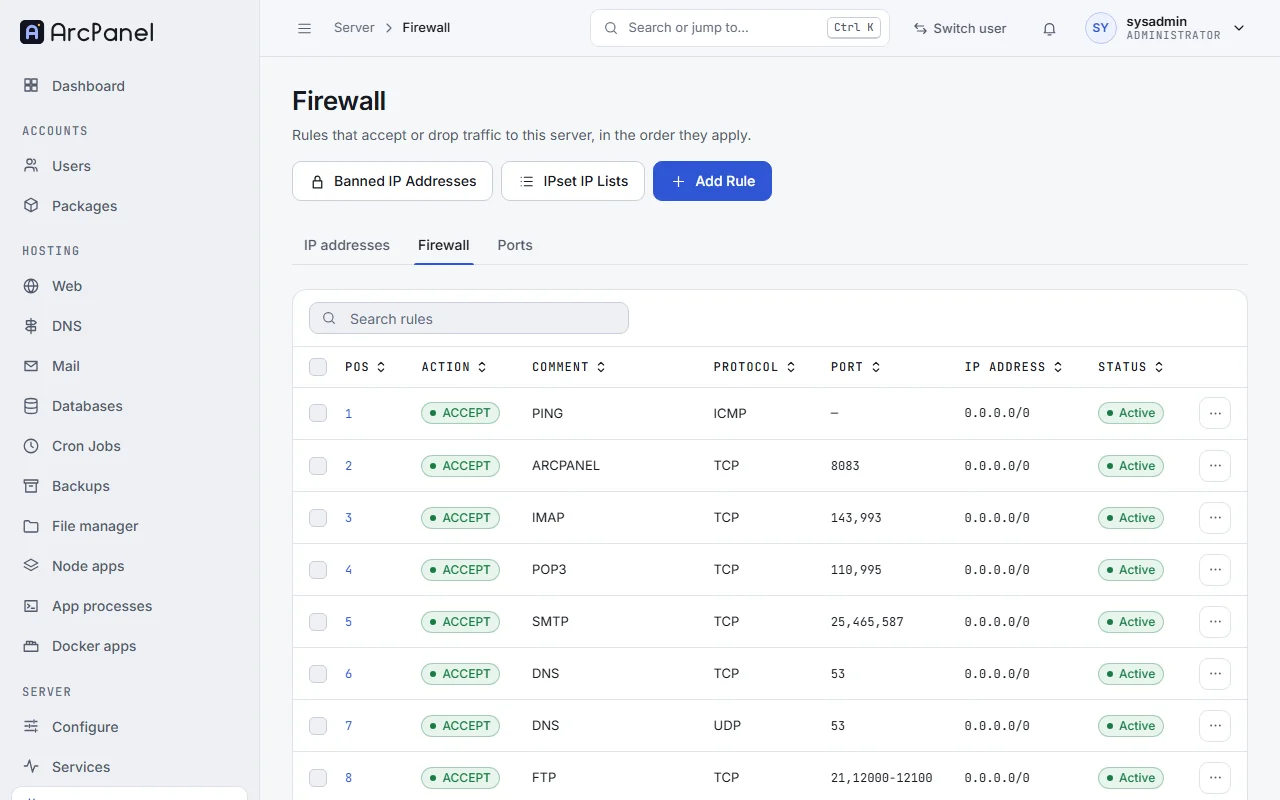
All accept connections from any address. The installer leaves out the rules of services you did not install. When you change the panel port (v-change-sys-port) or the SSH port, ArcPanel updates the ARCPANEL and SSH rules. Ports that ArcPanel opens for webmail (8086) and phpMyAdmin (8087), and for public ports of the port registry, get rules of their own.
Note
The rules are for IPv4. ArcPanel 2.2 does not filter IPv6 traffic; if the server has an IPv6 address, filter it at your provider or with your own
ip6tablesrules.
Add a rule
Click Add Rule:
| Field | Value |
|---|---|
| Action | DROP to block, ACCEPT to allow |
| Protocol | TCP, UDP or ICMP |
| Port | A port, a range (80-82), a list (80,443,8080), or 0 for all ports |
| IP Address / IPset IP List | An address or a CIDR range such as 203.0.113.0/24, 0.0.0.0/0 for everyone, or an IP list |
| Comment | Optional; it names the rule in the list |
Rules apply from the top of the list down, and the first rule that matches decides. Use Move Firewall Rule Up and Move Firewall Rule Down in a rule's menu to order them, Suspend to turn one off for a while, and Delete to remove it.
For example, to let only your office reach SSH, add an ACCEPT rule for port 22 from the office's address, move it above the SSH rule, then change the SSH rule to DROP:
v-add-firewall-rule ACCEPT 203.0.113.10 22 TCP "SSH from the office"
v-list-firewall
Caution
Do not drop the panel port (8083) or SSH for every address before a rule accepts your own: you would lock yourself out. If that happens, use your provider's console and run
v-delete-firewall-ruleorv-stop-firewall.
Fail2Ban bans
Fail2Ban watches the logs and bans an address that fails to log in too often. Its jails and the firewall chains they ban in:
| Jail | Watches | Chain | On by default |
|---|---|---|---|
ssh-iptables |
SSH logins | SSH | Yes |
arcpanel-iptables |
Panel logins | ARCPANEL | Yes |
exim-iptables |
SMTP logins | Yes | |
dovecot-iptables |
IMAP and POP3 logins | Yes | |
phpmyadmin-auth |
phpMyAdmin logins | WEB | Yes |
recidive |
Addresses banned 5 times a day | RECIDIVE | Yes, 10 days |
vsftpd-iptables |
FTP logins | FTP | No |
mysqld-iptables |
Database logins | DB | No |
roundcube-auth |
Webmail logins | WEB | No |
Banned IP Addresses on the Firewall page lists the banned addresses with their Chain, Date and Time. Delete a ban to let the address in again; ArcPanel also lifts it in Fail2Ban. Ban IP Address bans an address by hand in a chain you choose.
When you lock yourself out, lift the ban from another address or from the provider's console:
v-list-firewall-ban
v-delete-firewall-ban 198.51.100.7 ALL
IP lists
An IP list is a named set of addresses that a rule can use as its source, so that one rule blocks or allows many addresses. Open IPset IP Lists and add a list with:
- IP List Name;
- Data Source: a URL of a list, a
script:that prints addresses, or afile:on the server; Known lists offers a list of known malicious addresses and lists of the addresses of 16 countries; - IP Version and Auto Update (once a day).
Then add a rule whose IP Address / IPset IP List is the list, for example DROP on all ports.
v-add-firewall-ipset blacklist "script:/usr/local/arcpanel/install/common/firewall/ipset/blacklist.sh" v4 yes
v-add-firewall-rule DROP ipset:blacklist 0
From the command line
v-list-firewall
v-add-firewall-rule DROP 192.0.2.0/24 0 TCP "block a range"
v-suspend-firewall-rule 11
v-delete-firewall-rule 11
v-update-firewall
v-update-firewall writes the rules into iptables again; a systemd unit restores them at boot.
Next steps
- Port registry for the public ports of apps.
- Server settings for the API addresses and the login policies.