After the Installation, the panel runs on port 8083 of your server. This guide takes you through the first sign-in and the settings to check before you add sites.
Open the panel
Open the Admin URL that the installer printed and e-mailed, for example:
https://panel.example.com:8083
Right after the installation, the panel uses a self-signed certificate, so the browser warns that the connection is not private. That is expected: continue to the site. After the first restart, ArcPanel replaces it with a Let's Encrypt certificate for the host name, provided the name resolves to the server and port 80 is reachable.
To ask for the certificate again later, for example after you fixed the DNS, run as root:
v-add-letsencrypt-host
Sign in
Enter the administrator Username and Password you chose during the installation and click Login.
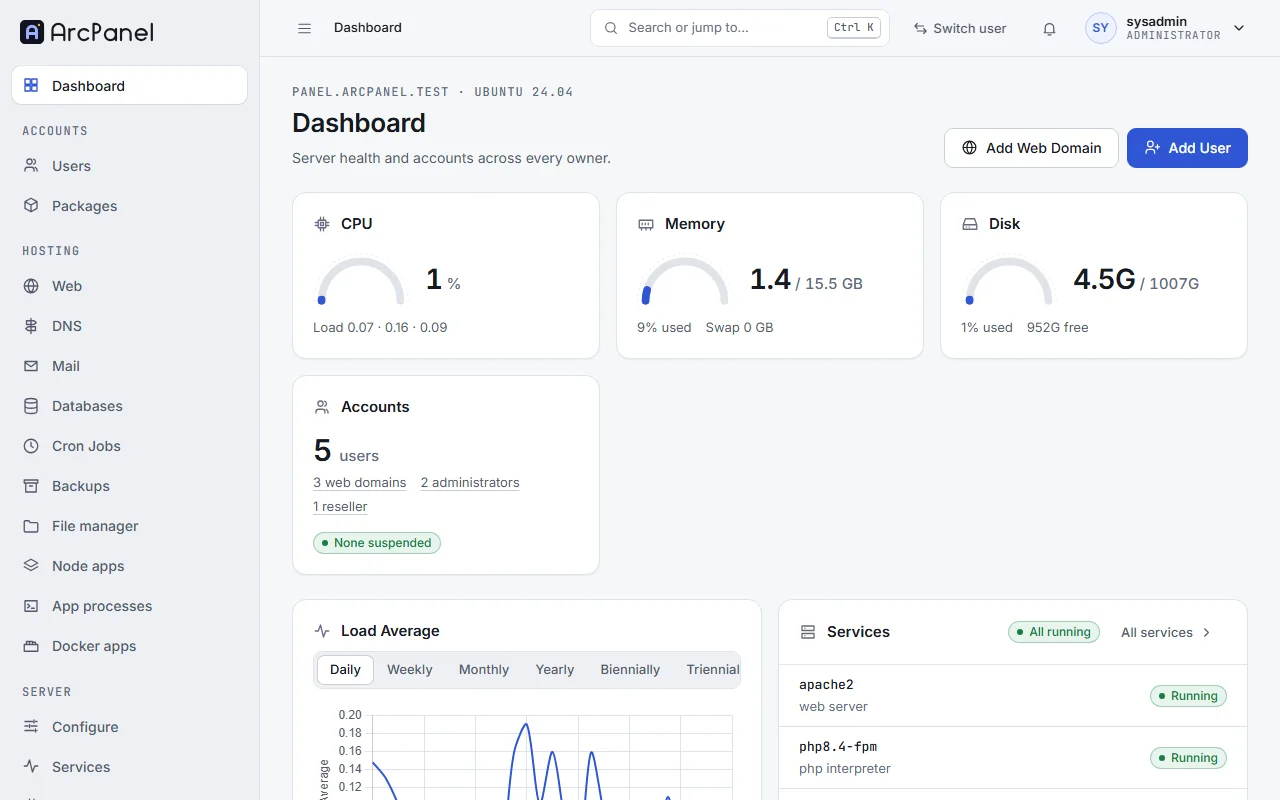
Forgot the password? Set a new one on the server:
v-change-user-password arcadmin 'a-new-strong-password'
Secure the administrator account
Change the password
Open the account menu at the top right and choose Account. On the General tab, enter a New password and click Save. Leave the field empty to keep the current one.
Turn on two-factor authentication
In ArcPanel 2.2, two-factor authentication is turned on from the command line:
v-add-user-2fa arcadmin
v-list-user arcadmin
v-list-user shows the secret in the TWOFA field. Add it to an authenticator app such as Aegis, Google Authenticator or 1Password, as a time-based (TOTP) key. From the next sign-in, the panel asks for the 2FA Token after the password.
Store the secret in your password manager as well: it is also your reset code. If you lose the authenticator, click Forgot Token on the sign-in page and enter your Username and the secret as 2FA Reset Code; this turns two-factor authentication off so that you can sign in and set it up again. On the server, v-delete-user-2fa arcadmin does the same.
To turn it off yourself, use Turn off two-factor authentication on the Security tab of the account page.
Check the first settings
Open Configure under Server in the sidebar. The Server settings page has a tab for each part of the server:
| Tab | Check |
|---|---|
| General | The Time Zone and the Default Language of new users |
| Mail Server | Where webmail opens: the panel host on port 8086, or webmail.<domain> |
| Backups | Turn on a remote host so that backups leave the server |
| Security | The policies for users and sessions |
| White Label | The name and logo shown to your customers |
Updates, also under Server, lists the packages of the panel with their Version, and Update all installs new versions now. Automatic updates are on after the installation; leave them on unless you have a reason to update by hand.
Your own language is in the account menu, under Language.
Webmail and database tools
When they are installed, two tools run on the panel host with the panel's certificate:
- webmail (Roundcube):
https://panel.example.com:8086 - phpMyAdmin:
https://panel.example.com:8087
Next steps
- Add your first domain.
- Schedule backups to a remote host.