The installer has finished and the dashboard opens. Before you put a customer website on the server, check that you can sign in securely, serve a real domain over HTTPS and recover a file from backup. This checklist takes you through those checks in order, with a clear result for each one.
It is for developers, agencies and small hosting providers setting up their first ArcPanel server. It follows the released ArcPanel 2.2 line. Keep your server provider's console available while you work, and use a test account and a domain you control. The example names below are placeholders.
1. Make the panel hostname work over HTTPS
Open the Admin URL printed by the installer, such as https://panel.example.com:8083. The hostname should resolve to this server. Check the address in your DNS provider's control panel before you investigate a certificate error.
A fresh installation initially uses a self-signed certificate. After the first restart, ArcPanel requests a Let's Encrypt certificate when the hostname resolves correctly and port 80 is reachable. Let's Encrypt's HTTP-01 documentation explains why this validation needs port 80. If the host certificate has not been issued, follow the first-login guide to check the requirements and request it again.
Done when: you can open the panel by its hostname over HTTPS with a valid certificate. Bookmark that address so you do not have to find it in the installation output each time.
2. Protect the administrator account
Use a unique administrator password and store it in a password manager. Open the account menu, choose Account and use the General tab if you need to replace the password chosen during installation.
Set up two-factor authentication using the instructions in First login. In ArcPanel 2.2, enrollment starts from the server command line. Keep the setup key private and store the recovery information securely; do not paste it into a support ticket or screenshot.
Under Server › Configure › General, check the server's time zone. It affects cron jobs and backups. Choose it deliberately rather than discovering later that a scheduled job runs at the wrong hour.
Done when: a new administrator sign-in requires both the password and the authenticator token, and you have a recovery method you can reach without this server.
3. Give the first website its own user
Create a hosting user for the site instead of putting everyday website work in the administrator account. Under Accounts › Users › Add User, choose the User role and a package with limits appropriate for that account. Packages control resources such as domains, disk space, databases and backup retention.
You can enter the first web domain while creating the user. Otherwise, add it under Web › Add Web Domain. Decide whether the server should also host DNS and mail before leaving those options enabled. A website can run here while its DNS and mail stay with other providers.
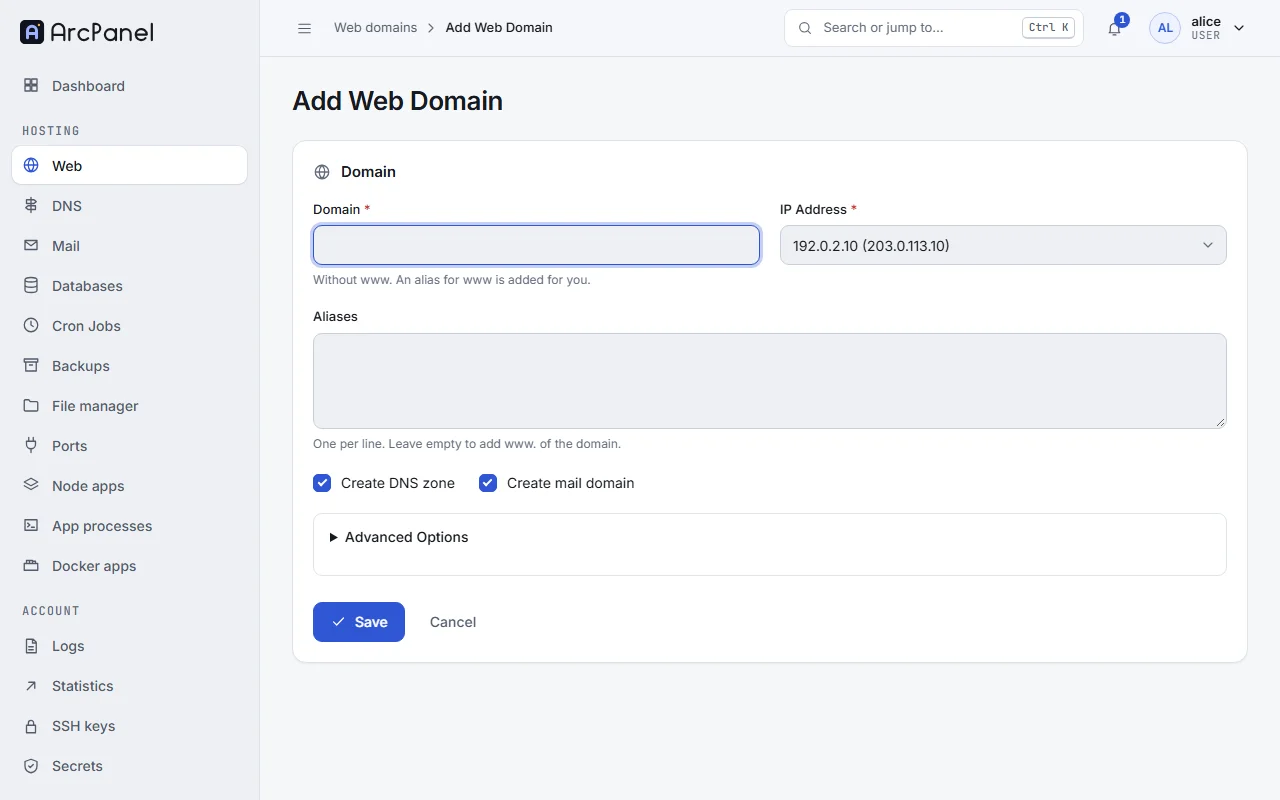
Follow Add your first domain for the complete walkthrough. Pick an installed PHP version that your application supports, then upload the site to its document root. For the example user alice and domain example.com, that is /home/alice/web/example.com/public_html.
Done when: the hosting user can sign in with their own account and manage the intended domain. Check the package's backup allowance now, while the account is still small.
4. Test DNS, HTTPS and the site's real work
Point the domain and every alias you intend to use at the new server. If an alias still points elsewhere, fix it before requesting a certificate that includes that name. In the domain's SSL tab, enable SSL and Let's Encrypt, then enable automatic HTTPS redirection. Leave HSTS off until the HTTPS setup works.
Test more than the home page. A successful page load does not prove the database, upload directory or outgoing mail works. Use a small acceptance list for your application:
- Open the main domain and its expected aliases; check their HTTPS certificates and redirects.
- Sign in with a test application account and open a page that reads the database.
- Upload a harmless test file and confirm the application can display it.
- Submit a contact form or password-reset request to an address you control.
- Check a scheduled task if the application depends on one.
If mail stays with an external provider, preserve that provider's MX and authentication records. If this server will send and receive domain mail, work through Set up mail and DNS, including SPF, DKIM, DMARC and reverse DNS with your server provider. Send and receive test messages before handing out mailbox details.
Done when: the site's important actions work through its public HTTPS address, and mail reaches the provider or mailbox you intended.
5. Put a backup somewhere else and test a restore
ArcPanel's nightly account archives are enabled after installation. The default package keeps one archive, and the default backup destination is on the same server. A lost server can therefore take both the live site and its local backup with it.
Open Server › Configure › Backups and configure a remote destination using Schedule backups. Choose retention that fits how far back you may need to recover. Check free disk space as well: archive creation needs working space on the server.
Create an account backup from Backups › Create Backup. Wait for the completion notification, then confirm the expected archive arrived at the remote destination. Saving the remote settings alone does not prove an upload succeeded.
For a small rehearsal, put a recognizable test file in the disposable site's document root, create a backup, change the file, and restore that test web domain from the archive. Confirm that the earlier file content returns and the site still loads. The backup and restore guide explains how to select individual resources instead of restoring the entire account.
Done when: you have checked a copy off the server and recovered test data successfully. Record the backup date, destination and restore result somewhere you can access during an outage.
6. Review updates and network access before handover
Open Server › Updates and check the installed panel packages. Automatic updates are enabled after installation. ArcPanel's automatic panel updates stay on the installed release line; review the changelog before planning a move to another minor release.
Review the services you actually intend to expose and compare the server firewall with your provider's firewall. Keep the provider console available before changing access rules so you have a way back if you block your own connection.
Done when: you know how updates are handled, which services are reachable and how to recover administrative access.
Keep a short handover record
Write down the panel URL, who owns the hosting account, where DNS and mail are managed, and where backups go. Add the date of the restore test and the application checks that passed. Store passwords and recovery keys separately in your password manager.
Revisit the checks after a migration or a major application change. Your next step is to configure and verify an off-server backup if you have not done it yet. That gives the first site a recovery path before it becomes the site someone depends on.